


If you’ve ever wondered how to change your name on Facebook, you’re definitely not alone. Every month, thousands of users around the world search for ways to update their name — whether it’s after a marriage, a spelling mistake, or a fresh start.
But Facebook isn’t as simple as it used to be. It now has strict name change rules, review systems, and security checks that can confuse even experienced users. That’s why this detailed 2025 guide explains everything you need to know — from basic steps to advanced troubleshooting — so you can change your Facebook name confidently, no matter which device you’re on.
By the end of this article, you’ll know:
- How to change your name on mobile, desktop, and Facebook Lite
- What Facebook’s name rules and limits are
- What to do if your name gets rejected or locked
- How to add nicknames, maiden names, or brand names
- Why Facebook may review your change before approving it
Let’s walk you through it step by step.
🔍 Why Do People Change Their Name on Facebook?
Before we dive into the process, it helps to understand why Facebook takes name changes so seriously.
Facebook was designed to use real identities, so users can find each other easily and maintain authenticity. However, over time, people have several legitimate reasons to update their name:
| Reason | Example |
|---|---|
| Marriage or Divorce | Mary John → Mary Smith |
| Correction of Typo | Jhon → John |
| Religious or Cultural Change | David → Dawood |
| Branding or Personal Identity | Ali Raza → Ali Raza Khan Official |
| Legal Name Change | After official documentation |
| Switching Nicknames | Ayesha → Ashi |
Each of these reasons is acceptable — as long as your new name matches Facebook’s real-name policy.

📱 How to Change Your Name on Facebook (Mobile App – Android & iPhone)
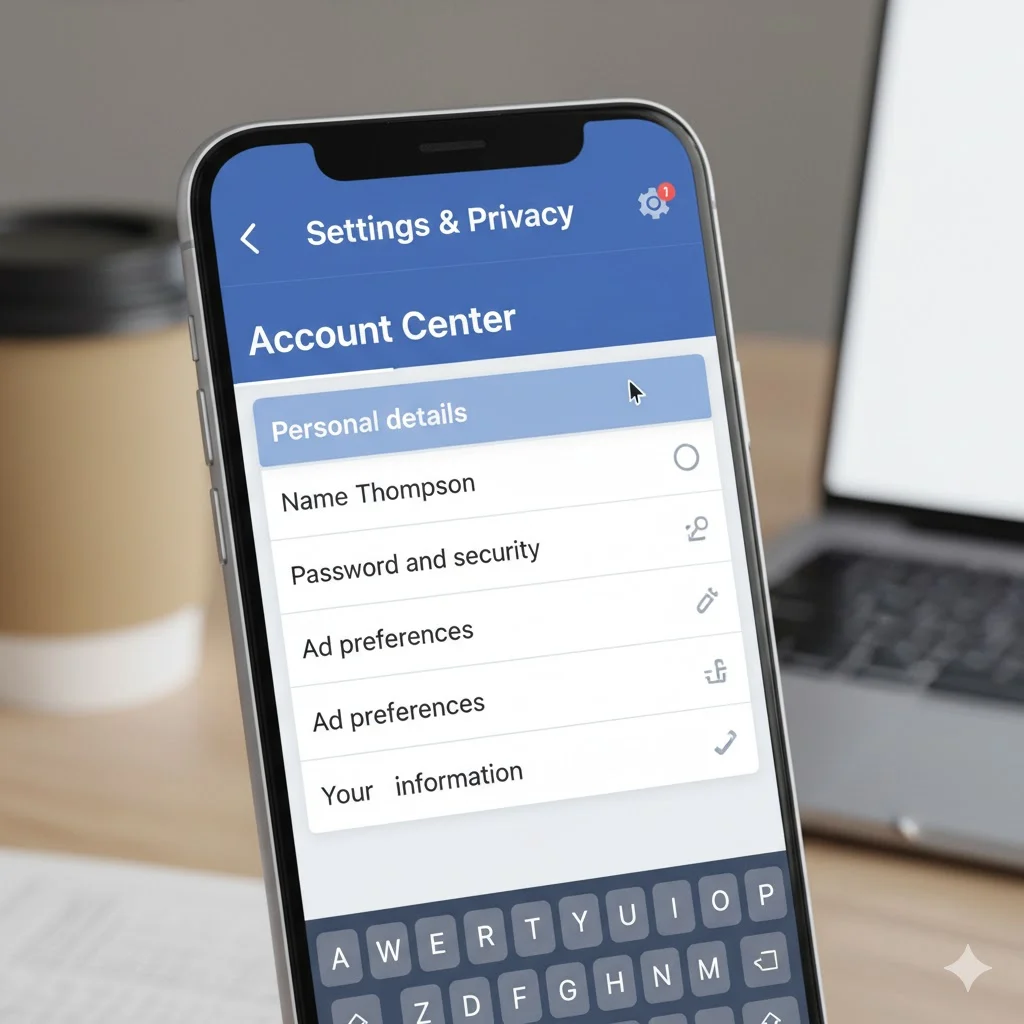
Let’s start with the device most people use — the mobile app.
Step 1: Open Facebook Settings
- Open your Facebook app.
- Tap the ☰ (Menu) icon — top-right on Android or bottom-right on iPhone.
- Scroll down and tap Settings & Privacy → Settings.
Step 2: Tap “Personal Information”
Under “Account,” tap Personal Information.
Here you’ll see details like your name, phone number, and email.
Step 3: Tap “Name”
Tap the Name section. Facebook will open three editable fields:
- First Name
- Middle Name (optional)
- Last Name
Step 4: Enter Your New Name
Type in your updated name.
Example:
Old: Sana Malik
New: Sana Ahmed Malik
Tap Review Change.
Step 5: Review and Save
- Choose how your name will appear (e.g., “Sana Malik” or “Malik Sana”).
- Enter your password to confirm your identity.
- Tap Save Changes.
✅ That’s it! Your name will update in a few minutes, but it can take up to 24 hours in some cases.
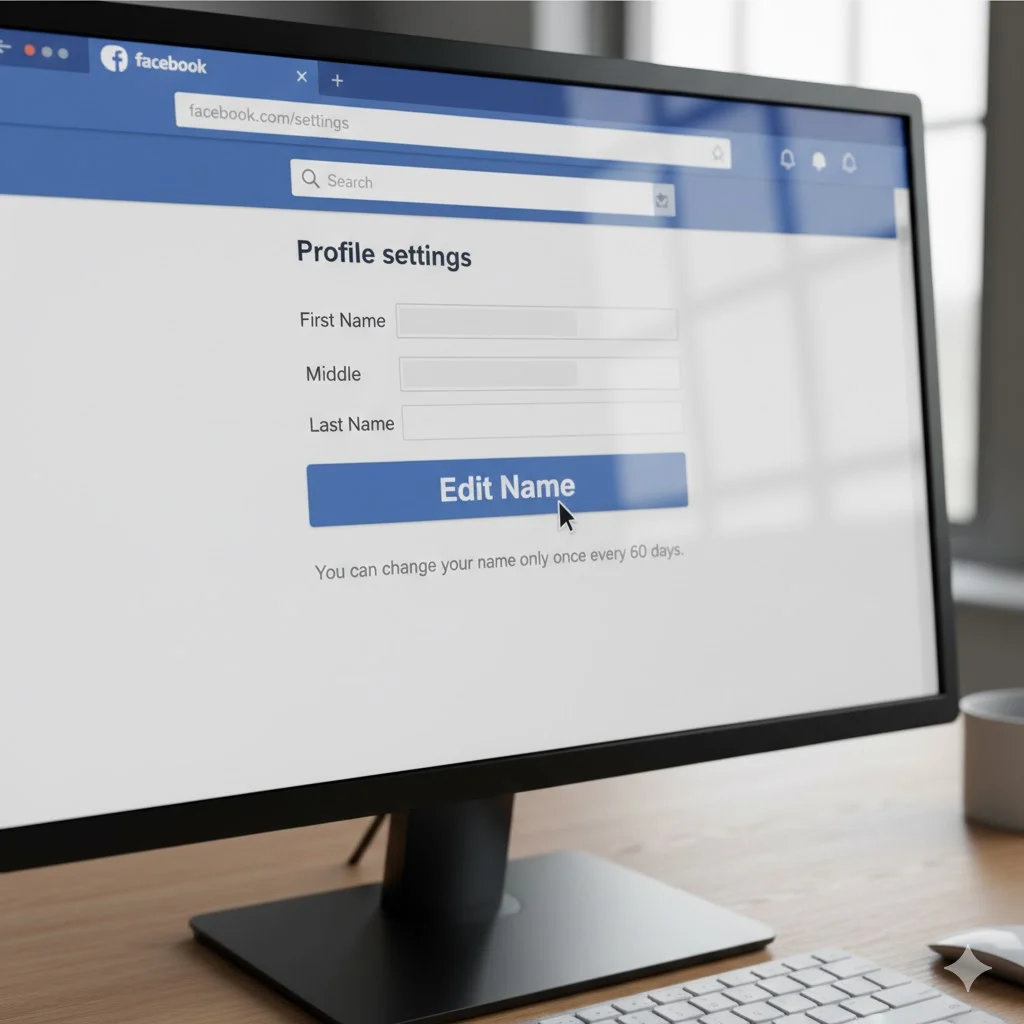
💻 How to Change Your Name on Facebook (Desktop Browser)
If you prefer using Facebook on your computer, follow these steps:
- Log in to facebook.com.
- Click the ▼ arrow at the top-right.
- Choose Settings & Privacy → Settings.
- From the left menu, select Personal Information.
- Next to your current name, click Edit.
- Type your new first, middle, and last name.
- Click Review Change, then confirm with your password.
- Click Save Changes.
💡 Tip: Don’t rush. Facebook only allows one name change every 60 days, so check spelling carefully.
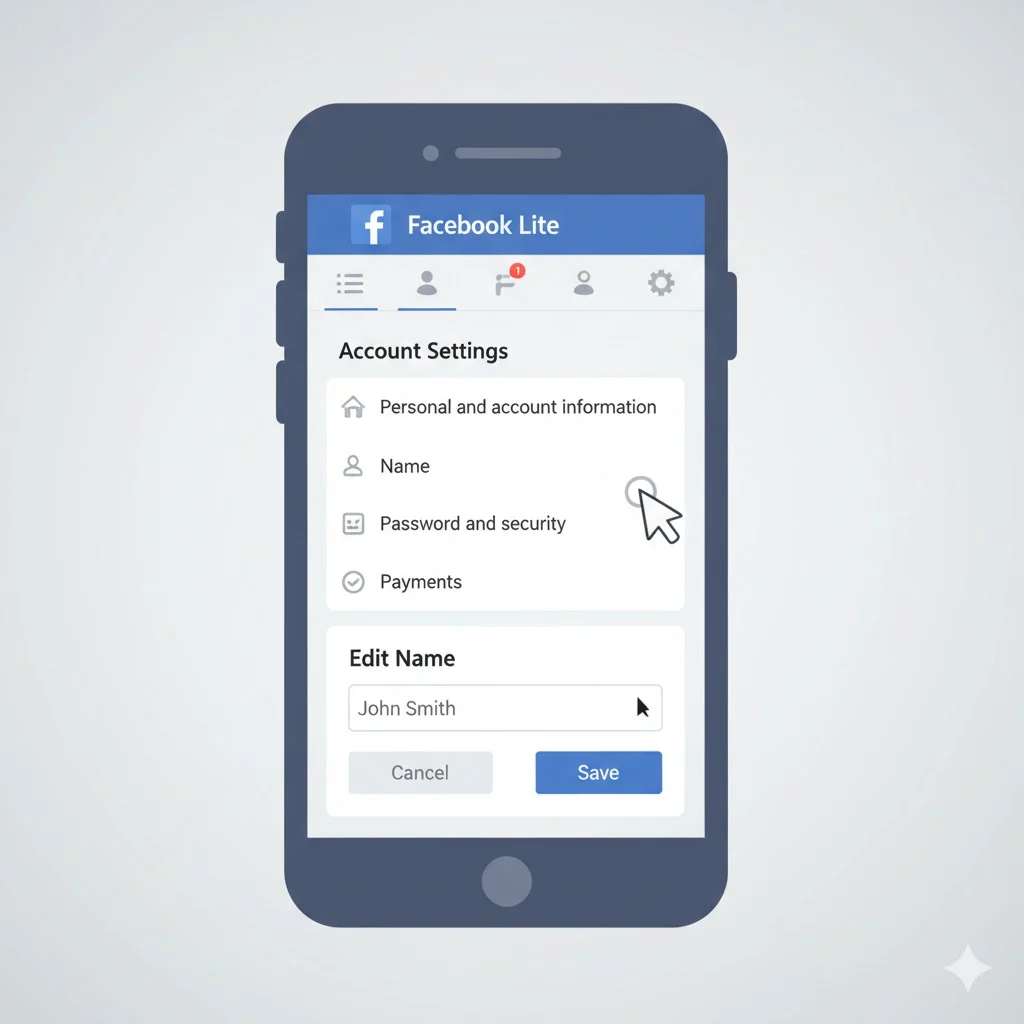
⚙️ How to Change Your Name on Facebook Lite
If you’re using Facebook Lite — the lightweight version of the app — here’s what to do:
- Open the Facebook Lite app.
- Tap the ☰ (Menu) icon.
- Go to Settings → Personal Information.
- Tap Name → Edit.
- Enter your new name → Tap Review → Save.
Lite uses fewer resources but follows the same system as the full app.
⚖️ Facebook Name Rules You Must Follow (Real-Name Policy 2025)
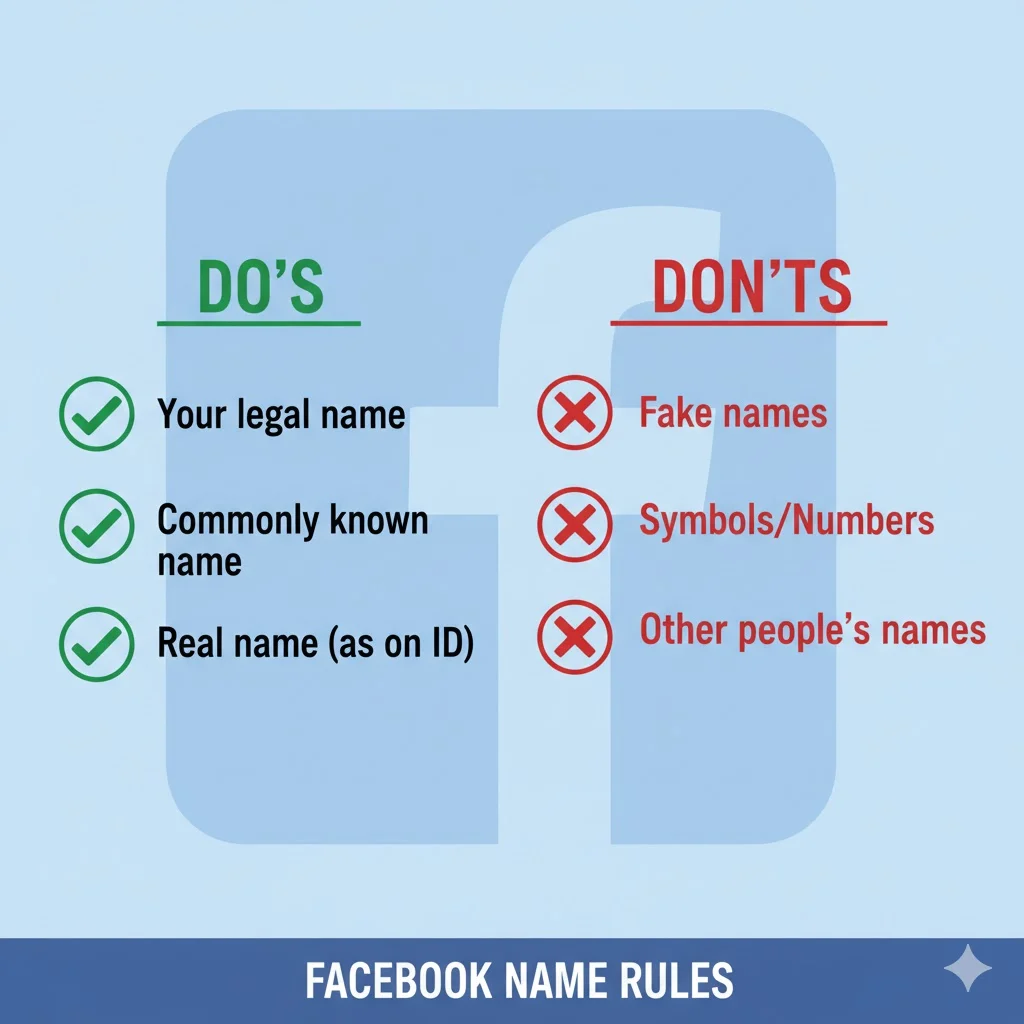
Facebook only accepts names that look and sound real. If your new name violates the policy, Facebook can:
- Reject it
- Temporarily block name changes
- Request ID verification
Here’s what’s allowed and what’s not.
✅ Allowed:
- Real first and last names
- Nicknames used in real life (e.g., “Ali” for “Alicia”)
- Middle or maiden names
- Names with regional characters (e.g., É, Ñ, Ç)
- Shortened names (e.g., “Sam” for “Samuel”)
❌ Not Allowed:
- Numbers or punctuation (e.g., J@ck, Sm!th)
- Weird capitalization (like jOhN SMiTh)
- Titles (Dr., Ms., Sir)
- Words or phrases instead of names (e.g., “Boss Babe,” “Cool Guy”)
- Religious or political titles
- Offensive or fake names
💬 Pro Tip: If Facebook thinks your name doesn’t match your real identity, it may ask for an official ID (like a driver’s license or passport).
⏱️ How Often Can You Change Your Facebook Name?
You can change your name only once every 60 days.
If you try earlier, Facebook will display:
“You can’t update your name right now because you’ve changed it recently.”
This rule prevents spam and fake accounts. So plan your name carefully before saving!

🕒 How Long Does a Facebook Name Change Take?
Most name changes happen instantly.
However, sometimes Facebook’s algorithm flags a name for manual review, especially if:
- You’ve changed your name multiple times recently
- You’re using a rare or symbolic name
- You’re logging in from a new device or location
Manual reviews can take up to 24 hours.
🪪 Adding a Nickname, Maiden Name, or Other Name Instead
If you don’t want to change your full name, you can add a secondary name that appears beside your main one.
Steps to Add a Nickname:
- Open your Profile Page.
- Tap About → Details About You.
- Tap Add Other Name.
- Choose the type (Nickname, Maiden Name, Birth Name, etc.).
- Enter the name and check “Show at top of profile” if you want it visible.
- Tap Save.
Example:
Full Name: Ahmad Raza
Nickname: AJ Raza
This keeps your main name official while letting friends find you by your nickname.
🚫 What If Facebook Rejects Your Name Change?
If Facebook rejects your name, here’s what to do:
1. Double-Check for Errors
Remove any symbols, emojis, or unnecessary capital letters.
2. Match With Your Real ID
If Facebook requests verification, upload a valid ID. Make sure the name matches your new name request.
3. Don’t Use Multiple Languages
If your name is in another script (Arabic, Cyrillic, etc.), set your Facebook language accordingly before submitting.
4. Wait 60 Days
If you’ve changed it recently, wait for the cooldown period to expire.
5. Contact Facebook Support
Go to the Facebook Help Center → “Profile → Name Change Issue” → and follow the instructions.
🧩 Advanced Tips for Brand or Creator Accounts
If you’re a public figure, influencer, or business page admin, you can’t change your personal profile name to a brand — Facebook will reject it.
Instead, you can:
- Create a Facebook Page with your brand name.
- Link it to your personal profile.
- Manage posts and audiences separately.
Example:
Personal Profile: Sara Khan
Page: Sara Khan Studio
This ensures compliance while maintaining professionalism.
🧠 Common Problems & Real Solutions
| Issue | Cause | Solution |
|---|---|---|
| “You can’t change your name right now” | Changed recently | Wait 60 days |
| “Name rejected” | Violates rules | Use real name and remove symbols |
| “Review required” | Suspicious pattern | Verify ID |
| “Change not saving” | App glitch | Log out and retry, or clear cache |
| “Can’t find name settings” | Using older version | Update the Facebook app |
🧾 Legal Name Changes on Facebook
If your legal name has changed, you can update it by providing official documents:
- National ID
- Passport
- Driver’s License
- Marriage Certificate
Go to Settings → Account → Identity Confirmation, upload your ID, and wait for approval. Once verified, you can change your name freely.
📊 SEO Bonus: Why “How to Change Your Name on Facebook” Ranks Well
This topic consistently ranks because it satisfies multiple search intents:
- Informational: People want to learn how.
- Transactional: Some need help fast (after marriage, etc.).
- Navigational: Users look for the Facebook setting itself.
To rank well, your post must answer all three — and that’s what this guide now does.
💬 FAQs
Q1: Can I use a single name on Facebook?
➡️ Only if your country supports mononyms (like Indonesia).
Q2: Can I change my Page name too?
➡️ Yes, go to Page Settings → Page Info → Name → Edit, then request a review.
Q3: Can I hide my last name?
➡️ Not normally, but you can use “Nickname only” display by adjusting your profile settings in certain regions.
Q4: Will my old name still appear in search results?
➡️ It may appear for a few days until Facebook’s index updates.
✨ Final Thoughts
Changing your name on Facebook in 2025 is simple — but it’s also about following the rules carefully.
Whether you’re updating your name for personal, cultural, or branding reasons, make sure it’s authentic, correctly spelled, and approved by Facebook’s policy.
Remember:
- You can only change your name once every 60 days.
- Facebook may verify your name with ID.
- Use nicknames if you don’t want a full change.
Now go ahead — update your name and give your profile a new, authentic identity! 💙